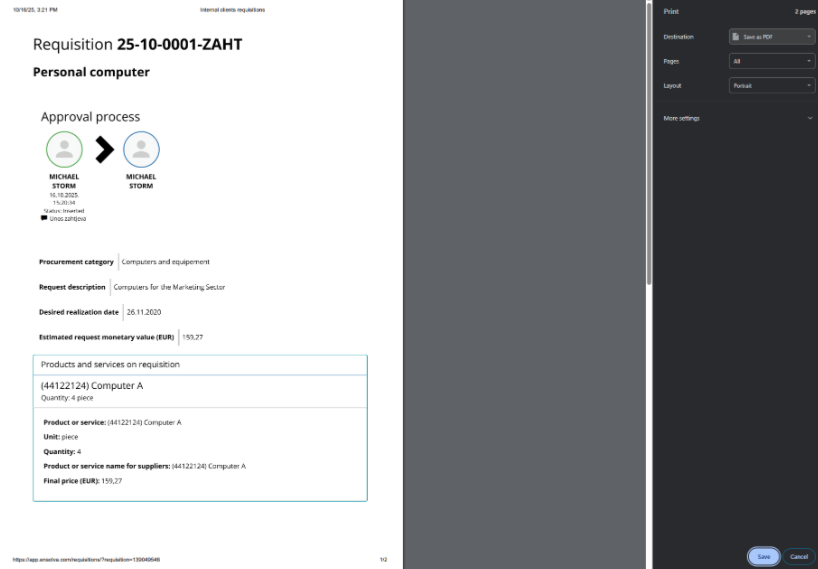
Copying, printing and saving the Request
COPYING REQUESTS
To copy an existing request, open the desired request and click the Copy requisition button.
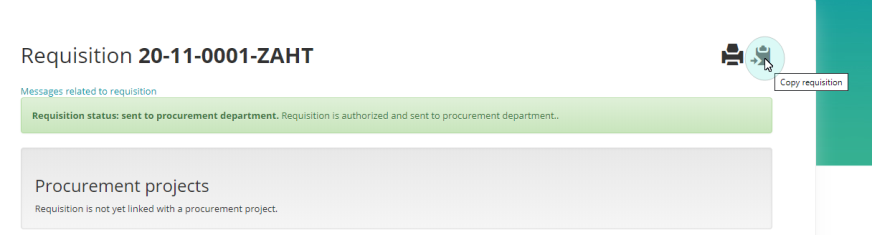
By selecting the new request's number, we can open the copied requisition.
_825x198.png)
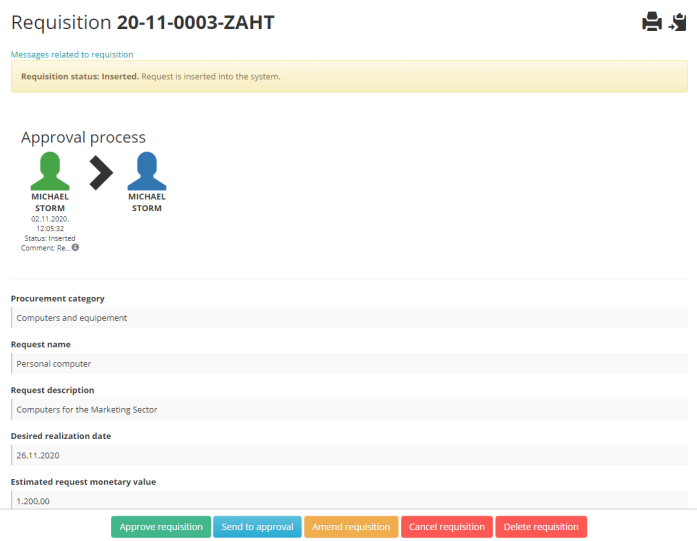
An overview of the request appears, allowing you to refine it, send it for approval, approve it, or delete it.
PRINT REQUISITIONS
By clicking on the Print requisition icon, the selected request is printed as a report.
SAVING REQUISITIONS IN PDF
The generated requisition can be saved in PDF format by selecting Save as PDF in the printer options when printing the report.